

Not seeing is believing

Last week, one of our clients asked us to investigate why some of their reporting wasn’t working as expected. It turned out to be a juicy one: a Program Level Custom Form had been accidentally dropped, permanently deleting the data without warning. That error went undetected for over a month, until our investigation using some built-in forensic auditing revealed the root cause.
Fortunately, all is again well, and it is such an unusual and compelling story that we decided to share it here as a warning (and encouragement) for others.
Custom Forms are one of the best features of Adobe Workfront, allowing customers to define, store, and report on key information that’s tailored to their business. To protect that data, it is best practice to restrict access to trained, authorized users only. If such a user does attempt to delete a custom form, a warning message asks “Are you sure you want to permanently delete this form and all associated data?” as a failsafe. With the introduction of multi-object Custom Forms, however, there is an edge case that drops data without warning, as this post explains.
On closer inspection
Our first step was to check the report definition, where we confirmed several of the Program level custom parameters were used both visually and for filtering. With those parameters in hand, we then navigated to Setup > Custom Forms > Fields, used the search box to locate the parameters, then clicked on the (one) Program Level Custom Form. It looked just as expected. So we ran an Advanced Search on Programs and filtered for any with a not blank value on one of those parameters. None came back. Puzzled, we navigated to Programs, then grouped by Category name…and again, saw none with the Program Level Custom Form in question. Opening a few of them and examining the Program details confirmed our suspicions: the Program Level Custom Form had been dropped from all Programs, and with it, all of the related data deleted. Permanently.
Hoping to recover the data, we then checked the client’s Preview and Sandbox environments, but unfortunately, they were in the same situation: the Program Level Custom Form must have been dropped long enough ago that the error had then propagated when each was refreshed. So our client asked us to investigate, while they assessed how best to recover the missing data.
The root cause
Since we knew the name of the Program Level Custom Form, we turned to the rarely used but very helpful Setup> Change Tracking > Audit Logs, then (as shown in yellow) chose Custom Form, then scrolled down until we found the Program Level Custom Form. From the log entries, we then discovered the root cause:
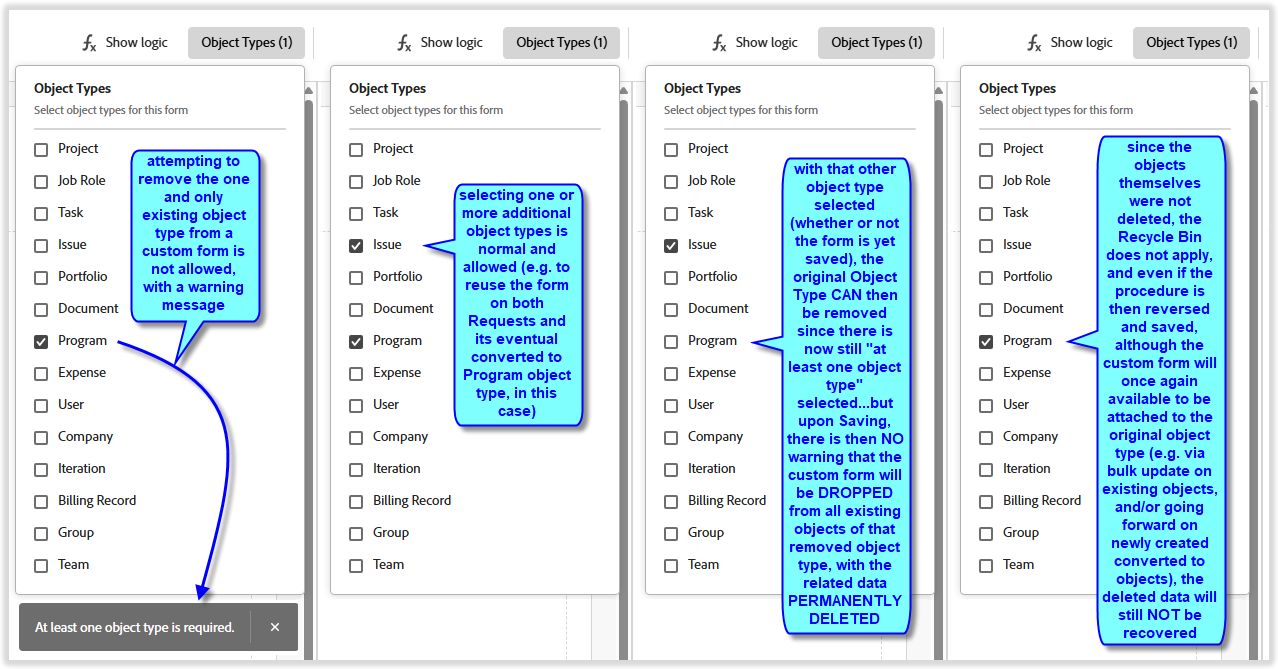
- at 9:03am update PRGM (only) Form to also be used at OPTASK (aka Request) level — fine, but curious that it wasn’t already “both”
- at 9:10am update PRGM, OPTASK Form to only be used at OPTASK level — DETACHING the form from all Programs at that point, and PERMANENTLY DELETING that Program level custom data
- at 9:13am update back from OPTASK (never used) to PRGM (only) again, with NEW Programs (going forward) then HAVING data (converted from request queue), but OLD Programs remaining WITHOUT the custom form (or data)

Put another way
Having conducted further testing since then, this diagram illustrates our best guess on the steps that happened.
Road to recovery
With the situation sorted out (and a note to share it with the SysAdmin team), our client then had a few options for reinstating the missing data:
- Refer back to the original business documentation and manually re-enter the data…but that was Too Hot, since it would take a lot of time
- Use Fusion to pull the information from Snowflake…but that was Too Cold, since it would take a lot of effort
- Export the original custom data that was (fortunately) still on the original Requests to Excel, then use our Excel Updater solution to copy it back up to the Programs…which was Just Right
The Excel Updater approach had a few other interesting technical twists and some of the data needed to be double-checked in case it had changed since the original request, but by the end of the day, all of the Programs were repopulated, and the report was once again working as expected.
Final thoughts
We’ve shared this post with our colleagues at Adobe Workfront and suggested they add a warning message in a future release to prevent similar accidents from occurring.
Until then, we encourage you to ensure your SysAdmin team is aware of the current behavior and takes appropriate precautions.
Learn more
This is Episode 18 in our Oldies But Goodies series.